Rename a column
Columns can be renamed at any time. Renaming a column updates how the field appears in the interface while keeping the stored data intact.
1. Open the columns view
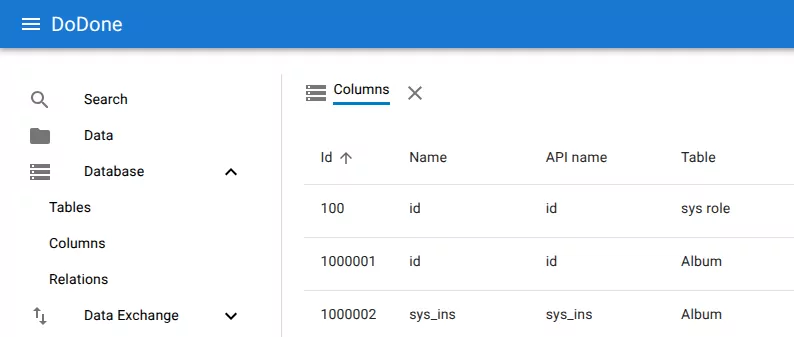
Open Database → Columns from the navigation menu.
Locate the column you want to rename.
2. Open the column menu
Click the menu icon at the end of the row.
This opens the actions menu for the column.

Tip
You can also double-click the row to open the edit dialog.
3. Select edit
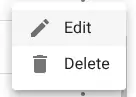
Choose Edit from the menu.
4. Change the column name
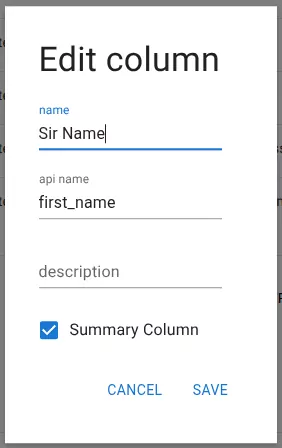
Update the Name field as needed.
You may also update the API name and Description.
Note
The column type cannot be changed after the column has been created.
5. Save the changes
Click Save to apply the new column name.
The updated name will immediately appear in the columns list.
Related resources
Understand the concept
Reference