Bind to column
How to bind a schedule to a column
Binding a schedule to a column restricts which time interval values (slots) can be selected. The column will only accept slots generated by the bound schedule.
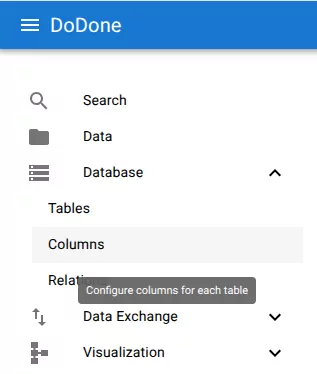
Step 1 — Navigate to columns
Navigate to:
Database → Columns
Step 2 — Open column actions
Locate the column you want to restrict.
Open the context menu (three dots) and select:
Bind Schedule

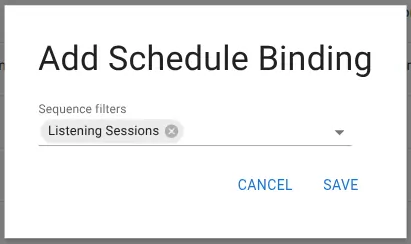
Step 3 — Select a schedule
In the dialog:
- Choose one or more sequence filters (schedules)
- These define which slots are allowed
Click Save.
Result
The column is now restricted to slots generated by the selected schedule.
This means:
- The UI will only present valid time intervals
- Users cannot select arbitrary timestamps
- All stored values follow the defined scheduling rules
Example allowed values:
Notes
- This affects input and validation, not existing stored data
- Multiple schedules can be combined
- The schedule controls both generation and filtering of slots
Related resources
Understand the concept
Reference